Your home vault is the vault that stays on. It can be a Mac, a Linux box or Raspberry Pi, a box, or an old phone on a charger. Your other devices reach it over the mesh, so your notes and media have a home even when your phone is off.
What each kind does
- Home vault · full history (a Mac today; Linux and Pi later): keeps all your history and syncs both ways with your phones. Set it up with Home vault sync.
- Home vault · new posts (a spare phone or a box): keeps your new posts and media, and passes your notes on to your relays. It doesn't hold your older history. This page shows how to set one up on a spare phone.
1. Turn on Home vault mode on the spare phone
- Install Nostr Vault on the spare phone and sign in with the same account.
- On iPhone, add your main phone under My Devices first (step 2). Home vault mode won't start with an empty list.
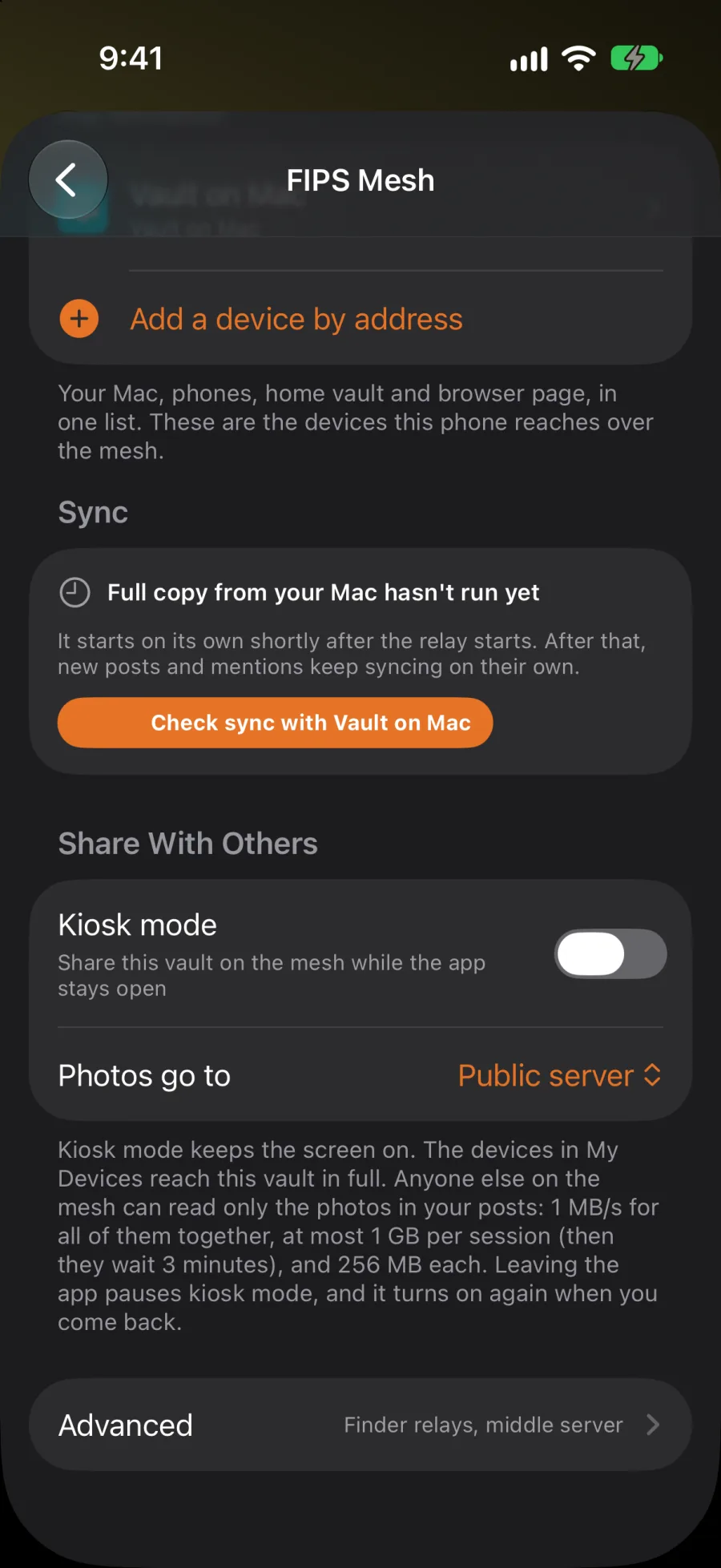
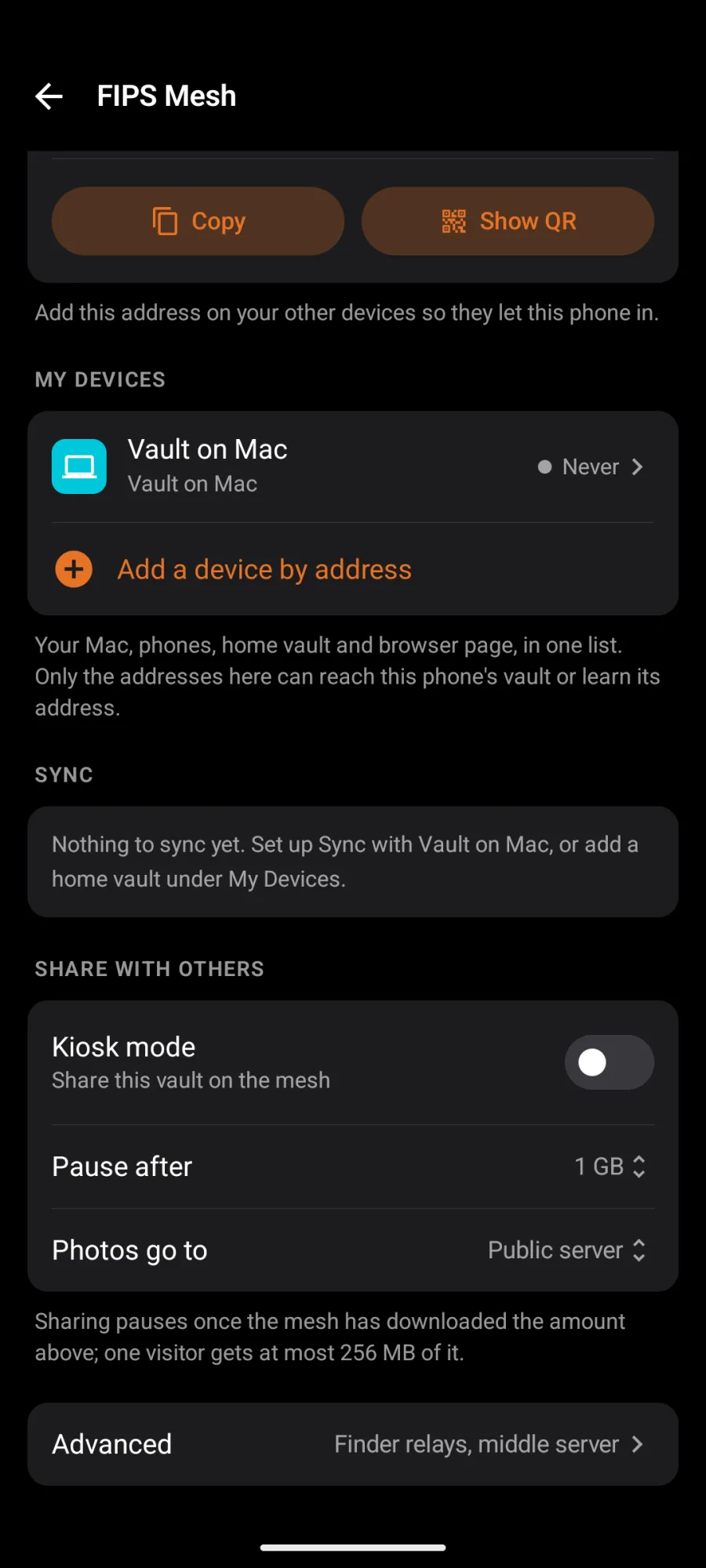
- Open Settings → Mesh, switch on Mesh, and under Share With Others switch on Home vault mode.
- Leave it on a charger.
- On iPhone, Home vault mode keeps the screen on, pauses when you leave the app and turns on again when you come back. On Android it keeps serving in the background while your vault runs, and after a restart.
- Your devices in My Devices reach the home vault in full.
- Anyone else on the mesh can read only the photos in your posts, and slowly: 1 MB/s for all of them together, at most 256 MB each. On iPhone they get 1 GB a day in total, then wait until the next day. They can't read your notes or change anything.
- On Android, Pause after (250 MB, 1 GB or 5 GB, 1 GB to start) sets how much the mesh may download in one session. When it's reached, Home vault mode turns off until you turn it on again.
2. Add it to My Devices
- On the spare phone, under This Device, copy its mesh address (or show its QR code).
- On your main phone, open Settings → Mesh → Add a device by address, paste or scan it, and pick Home vault · new posts. A home vault your account already lists shows under Address as In your media servers (on Android, In Your Media Servers). Tap it to use its address.
- Add the main phone to the spare phone's My Devices too.
From then on, your new notes and media also go to the home vault over the mesh, and it sends your notes on to your relays. They stay on your main phone too. Anything that can't reach it waits on the main phone and goes when the app is open and the home vault is in reach. Send now under Sync sends it straight away.
What's public. A home vault's mesh address is listed in your media server list, in public, so other apps can fetch your photos from it. Direct-message attachments are never sent there.
If your key is in a remote signer, media only goes to the home vault when you tap Send now.
Photos go to
Under Share With Others, Photos go to (Media servers, Home vault or Both) saves where you want photos to go, but it doesn't change anything yet: posting a photo still needs a public media server.